
Quick answer
Check the device clock, guide feed, channel mapping and timezone before changing programme offsets.
What to check on Amazon Fire TV Stick
An electronic programme guide is a schedule associated with a channel. It is not the channel stream itself. Video can work while the guide is missing, and a detailed guide can remain visible while a source is unavailable. Separate those two behaviours before making changes.
Fire TV is a device family, not a single software platform. Verify the model and operating system before following an Android-specific guide.
Use the directional pad to move between category, channel and programme panels. Long-press actions differ by player; add one favourite and reopen the list to learn how the app saves it.
A practical EPG and timezone walkthrough
- Check automatic date and time. Compare the device clock with the local time and verify the timezone. An incorrect clock can create an apparent EPG shift and can also interfere with secure network connections.
- Compare several channels. Open a channel that has programme information, one without it and another from a different group. This shows whether the guide problem is broad or limited to a particular mapping.
- Confirm the guide source. Ask whether guide data is provided automatically by the account or needs a separate feed in the player. Avoid adding a random public XMLTV URL to a private account setup.
- Refresh the guide once. Use the player refresh control and allow it to finish. Large feeds can take time to process. Repeated refreshes can replace one incomplete download with another.
- Use offsets only after verification. If the feed is consistently shifted, compare the advertised event time and timezone before applying an offset. A single event with an incorrect label does not establish a global guide offset.
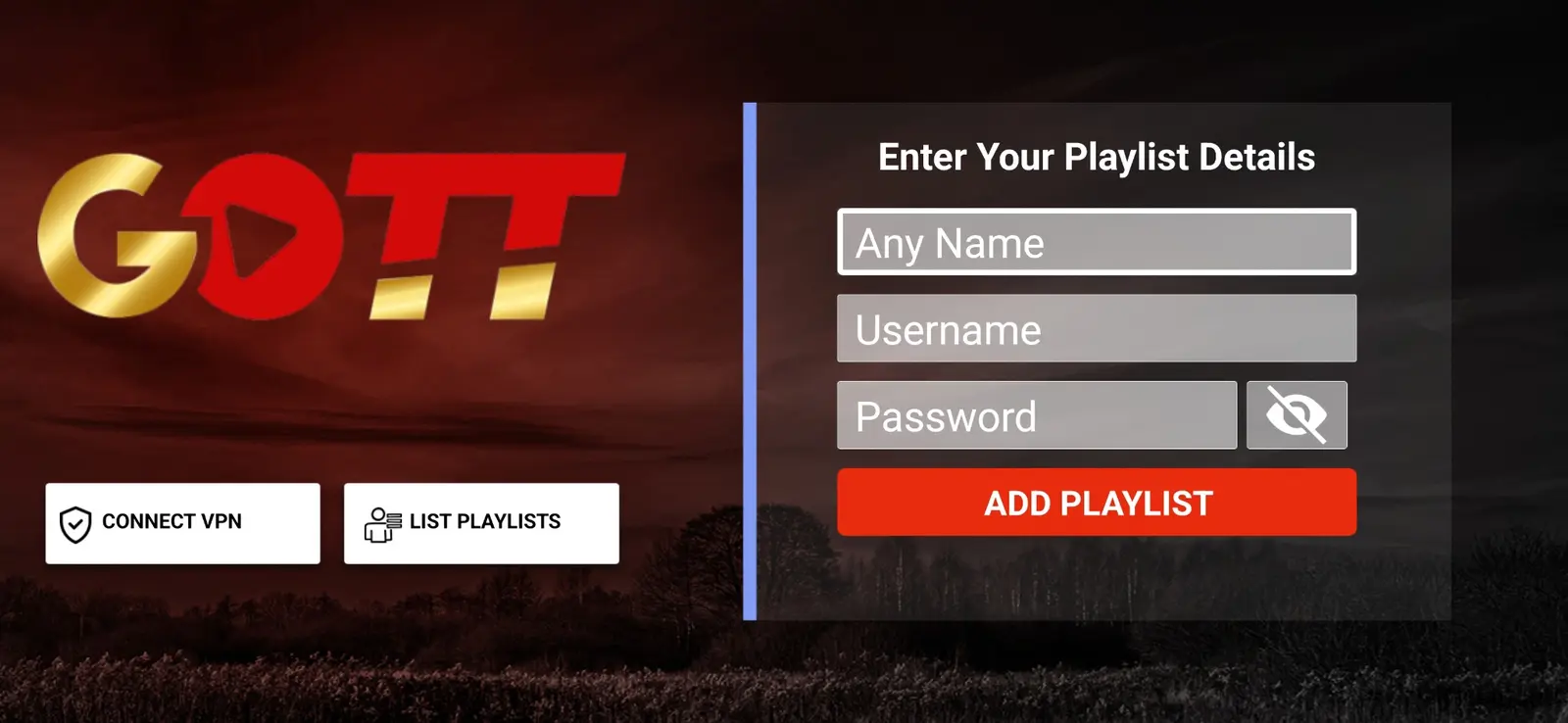
A remote control makes typing long URLs awkward. Enter the server address carefully and distinguish the digit zero from the letter O. Some supported players offer a phone-based pairing flow; use only the pairing page shown by the app.
Device, account and network checks
Start in the Amazon Appstore and search for a player supported by your exact Fire TV model. If support supplies an Android APK, first confirm that the device runs compatible Fire OS. Newer Fire TV models can use a different operating system, so an APK route is not a universal installation method.
The television can shield the stick from the router. An HDMI extension can improve placement, and a compatible Ethernet adapter can remove Wi-Fi variability. Compare the same channel before and after a network change rather than changing the player at the same time.
Start with a normal HD channel before testing a high-bitrate source. Hardware decoding, output resolution and frame-rate matching depend on the stick generation and player. Keep the device ventilated and use the correct power supply.
Use the directional pad to move between category, channel and programme panels. Long-press actions differ by player; add one favourite and reopen the list to learn how the app saves it.
A controlled test and a useful result
A correct result has programme start times that agree with a known schedule, a usable Now/Next view and stable data after reopening the player. Record which channel groups still have gaps; some feeds simply do not include every channel.
Choose a short reference session that you can repeat. Write down the starting app version, network and account state. Open the same source, perform the same action and wait long enough to see whether the original behaviour returns. When one variable changes, record the result before moving to another. This approach creates evidence that support can use and avoids a string of unrelated resets.
Avoid adjusting device time to compensate for one bad guide entry. Do not assume that missing EPG prevents live video, or that every guide supports seven days of history.
Interpreting the comparison
| Observation | What to check next |
|---|---|
| One source fails; reference source works | Source availability, codec and the exact category or title. |
| Every source fails after sign-in | Correct profile, account status, network path and connection allowance. |
| Playback works but guide information is missing | Guide feed, device clock, channel mapping and refresh state. |
| The behaviour changes on Ethernet | Wi-Fi placement, signal, interference and mesh backhaul. |
| A setting change helps one title but harms another | Decoder and format differences; restore the baseline and document both results. |
These observations narrow the next check. They are not a diagnosis by themselves: a source and a device can each contribute to a failure. Keep the working reference session so that a later change has something concrete to compare against.
Trial, subscription and connection limits
Once the app is installed, WhatsApp Golden OTT for a one-day free trial. Name the exact device and player, and say whether you need username/password, active-code or portal instructions. During the trial, check the categories that matter to you on the network you plan to use. A phone test on another connection does not substitute for a television test at home.
The current personal subscription prices are $8.99 for 1 month, $23.99 for 3 months, $38.99 for 6 months and $49.99 for 12 months. These prices select the account duration. They do not establish that a third-party app licence, a new device or additional concurrent connections are included. The standard plan lists one active connection.
A trial is useful when its outcome is specific: which source opened, whether audio worked, how the guide behaved and whether the remote controls were comfortable. Example app screens and catalogue artwork help explain navigation but cannot prove that a particular current event, channel or film is included. Ask support about any essential category before committing to a longer term.
When to involve support
Send the device model, operating system, player name and version, account route, connection type, exact error, affected source and time with timezone. Also say what still works. For Amazon Fire TV Stick, include the relevant device detail described above so the team can distinguish a model limitation from an account or source issue.
Keep screenshots focused on the symptom. Redact usernames, passwords, full playlist URLs, device keys, QR codes and customer details. If a private identifier is required, use the verified contact route and send the minimum information needed. The website contact form is an enquiry route and is not a place for card numbers or authentication codes.