
Quick answer
Identify the device, choose a compatible player, use the supplied login method and test one ordinary channel before changing advanced settings.
What to check on Google TV
A useful first setup ends with a working reference channel, a clear understanding of the account format and a saved route back to the programme guide. Installing an app is only the first part of that process. The subscription account, app licence and physical device are separate pieces, and a failure in one does not establish a failure in the others.
Google TV software does not guarantee that every Android APK or phone layout is usable with the remote.
Open the Apps area and search for the player in the device app store. Google TV organises Android TV apps through a different home interface, so the location of menus can differ even when the player itself is the same.
A practical setup and first login walkthrough
- Record the model and operating system. Find the device model in system information and write down the player version. Similar product names can hide different software platforms, particularly in television and streaming-stick families.
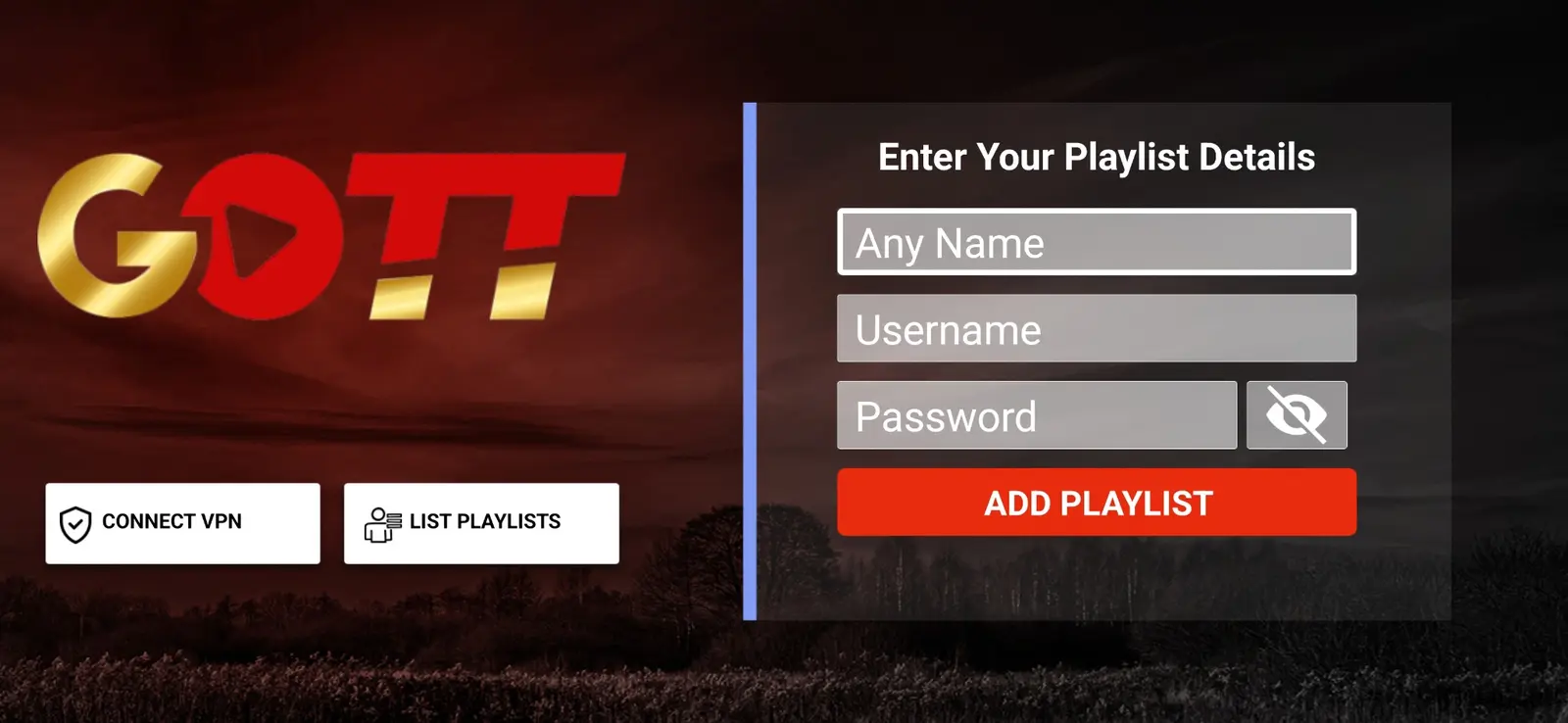
- Choose the correct login route. Compare the fields on screen with the details supplied by support. A username/password account belongs in those fields; an activation code belongs in the code form; a portal address belongs in the portal settings.
- Install from the verified source. Use the supported store or the download route confirmed for the selected device. If the app title, package or code differs from the guide, stop and ask which build support currently recommends.
- Save one named profile. Give the playlist an identifiable local name. Review punctuation, credential case and expiry before saving, and keep a private copy of the support instructions.
- Test a small reference set. Open one live channel, one movie if supplied and the programme guide. Check picture, sound, remote control and a short return to the channel list before evaluating advanced features.
Select the sign-in method supplied for your subscription. Avoid entering an activation code into a playlist-URL field. If the remote keyboard changes punctuation, review the whole server address before saving.
Device, account and network checks
Open the Apps area and search for the player in the device app store. Google TV organises Android TV apps through a different home interface, so the location of menus can differ even when the player itself is the same.
Run a test on the Google TV device and compare network status before changing playback settings. A mesh node can report a strong wireless signal while its backhaul remains congested.
Use the display mode supported by both the device and television. Automatic frame-rate matching is player-dependent. If an output-mode change causes a blank screen, allow the device to revert before trying another mode.
The system home screen and the player home screen are different. Learn the player favourites, live guide and last-watched controls rather than relying on recommendation cards on the Google TV home page.
A controlled test and a useful result
The setup is ready for a trial when the same reference channel opens twice, audio is audible, the guide can be reopened and the account expiry is understood. If only one category fails, report that distinction rather than saying the entire account is broken.
Choose a short reference session that you can repeat. Write down the starting app version, network and account state. Open the same source, perform the same action and wait long enough to see whether the original behaviour returns. When one variable changes, record the result before moving to another. This approach creates evidence that support can use and avoids a string of unrelated resets.
Do not buy an unrelated app licence to fix an unconfirmed account error. Do not reset the device merely because a URL was mistyped. Preserve a working profile until the new one is verified.
Interpreting the comparison
| Observation | What to check next |
|---|---|
| One source fails; reference source works | Source availability, codec and the exact category or title. |
| Every source fails after sign-in | Correct profile, account status, network path and connection allowance. |
| Playback works but guide information is missing | Guide feed, device clock, channel mapping and refresh state. |
| The behaviour changes on Ethernet | Wi-Fi placement, signal, interference and mesh backhaul. |
| A setting change helps one title but harms another | Decoder and format differences; restore the baseline and document both results. |
These observations narrow the next check. They are not a diagnosis by themselves: a source and a device can each contribute to a failure. Keep the working reference session so that a later change has something concrete to compare against.
Trial, subscription and connection limits
Once the app is installed, WhatsApp Golden OTT for a one-day free trial. Name the exact device and player, and say whether you need username/password, active-code or portal instructions. During the trial, check the categories that matter to you on the network you plan to use. A phone test on another connection does not substitute for a television test at home.
The current personal subscription prices are $8.99 for 1 month, $23.99 for 3 months, $38.99 for 6 months and $49.99 for 12 months. These prices select the account duration. They do not establish that a third-party app licence, a new device or additional concurrent connections are included. The standard plan lists one active connection.
A trial is useful when its outcome is specific: which source opened, whether audio worked, how the guide behaved and whether the remote controls were comfortable. Example app screens and catalogue artwork help explain navigation but cannot prove that a particular current event, channel or film is included. Ask support about any essential category before committing to a longer term.
When to involve support
Send the device model, operating system, player name and version, account route, connection type, exact error, affected source and time with timezone. Also say what still works. For Google TV, include the relevant device detail described above so the team can distinguish a model limitation from an account or source issue.
Keep screenshots focused on the symptom. Redact usernames, passwords, full playlist URLs, device keys, QR codes and customer details. If a private identifier is required, use the verified contact route and send the minimum information needed. The website contact form is an enquiry route and is not a place for card numbers or authentication codes.