
Quick answer
Check a reference source, decoder, audio output and subtitles one setting at a time.
What to check on Mac
A playback problem can come from the source, the account, the decoder or the path from the device to the screen. A black picture with audible sound calls for different tests from a channel that never opens. Describe the behaviour precisely before trying a fix.
macOS support is player-dependent. A subscription does not provide a licence for every third-party desktop application.
A player can use system or bundled decoding components. Compare the default decoder before adding plugins or changing display profiles. If an external monitor is involved, test the internal screen too.
A practical video, audio and subtitle checks walkthrough
- Classify the symptom. Record whether video, audio or both fail, whether the player shows an error and whether the guide still works. Note if the issue begins immediately or after several minutes.
- Open a reference channel. Use a source that worked during the trial. If that plays while one title fails, focus on source format and availability before replacing the account.
- Check output and decoder. Compare the default decoder with a supported alternative only if the player exposes that option. Keep the output resolution compatible with the television or monitor.
- Check audio routing. Confirm that the correct speakers or HDMI output are selected. Compare direct TV sound with an external receiver when practical, and distinguish muted output from an unsupported audio track.
- Inspect subtitle and aspect controls. Try another supplied subtitle or audio track. A missing track is not fixed by reinstalling the app, while a zoom or stretch setting can distort an otherwise correct picture.
Use separate fields for the server, username and password if the player requests them. Keep copied playlist URLs private and remove them from shared clipboard tools after setup.
Device, account and network checks
Download a compatible macOS player from the App Store or the publisher verified route. Check whether the build supports your macOS version and processor. Android APKs are not native Mac applications.
Wi-Fi, USB Ethernet adapters and docks introduce different network paths. Test without unnecessary downloads and check that the active interface is the one you intended.
A player can use system or bundled decoding components. Compare the default decoder before adding plugins or changing display profiles. If an external monitor is involved, test the internal screen too.
Use the player menu to locate EPG, audio and subtitle options. macOS system keyboard shortcuts can take priority over a player shortcut when another application is focused.
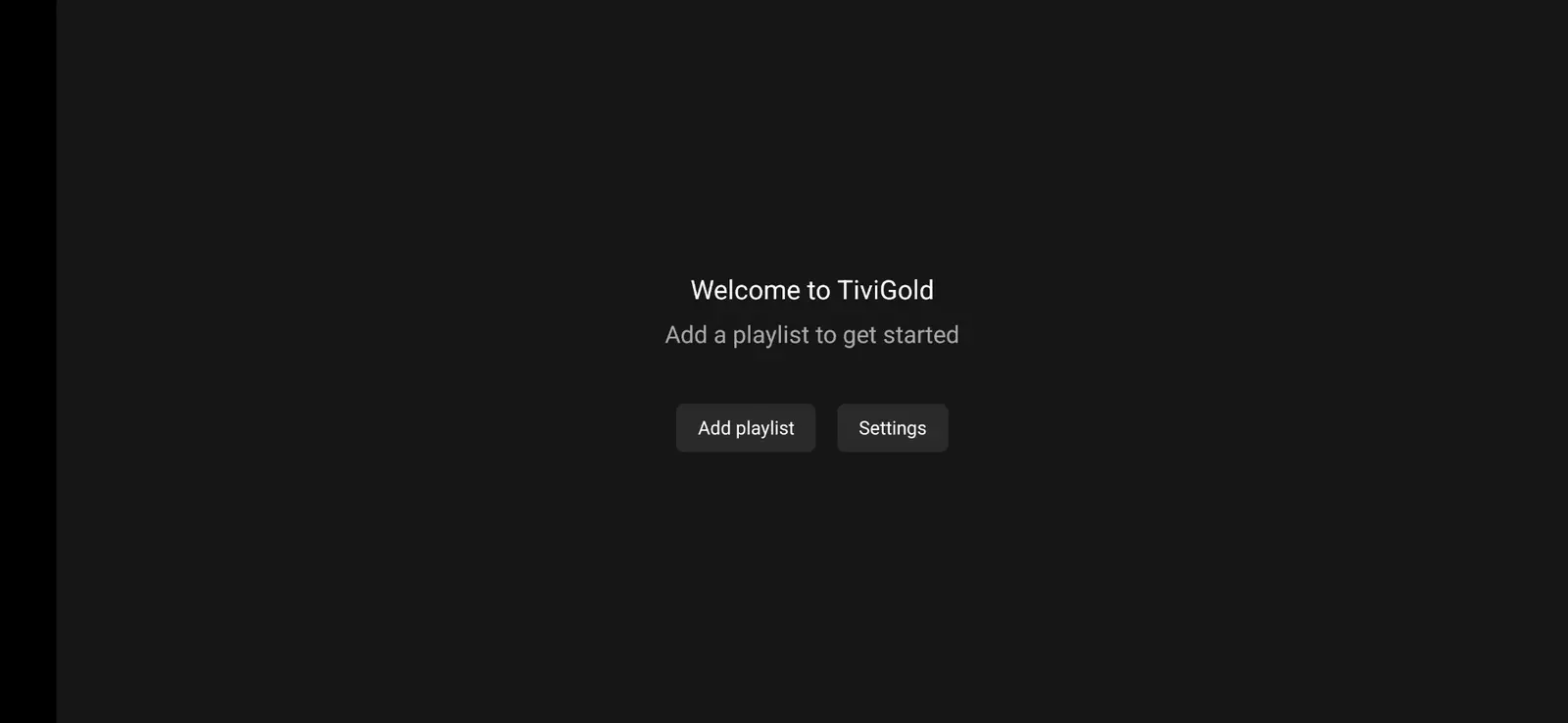
A controlled test and a useful result
The useful outcome is repeatable video, intelligible sound and a known path to the controls needed for that device. Document any source-specific limitation instead of applying a global reset.
Choose a short reference session that you can repeat. Write down the starting app version, network and account state. Open the same source, perform the same action and wait long enough to see whether the original behaviour returns. When one variable changes, record the result before moving to another. This approach creates evidence that support can use and avoids a string of unrelated resets.
Do not infer native 4K from an upscaled screen, or a source outage from one receiver audio setting. Keep decoder, output and source tests separate.
Interpreting the comparison
| Observation | What to check next |
|---|---|
| One source fails; reference source works | Source availability, codec and the exact category or title. |
| Every source fails after sign-in | Correct profile, account status, network path and connection allowance. |
| Playback works but guide information is missing | Guide feed, device clock, channel mapping and refresh state. |
| The behaviour changes on Ethernet | Wi-Fi placement, signal, interference and mesh backhaul. |
| A setting change helps one title but harms another | Decoder and format differences; restore the baseline and document both results. |
These observations narrow the next check. They are not a diagnosis by themselves: a source and a device can each contribute to a failure. Keep the working reference session so that a later change has something concrete to compare against.
Trial, subscription and connection limits
Once the app is installed, WhatsApp Golden OTT for a one-day free trial. Name the exact device and player, and say whether you need username/password, active-code or portal instructions. During the trial, check the categories that matter to you on the network you plan to use. A phone test on another connection does not substitute for a television test at home.
The current personal subscription prices are $8.99 for 1 month, $23.99 for 3 months, $38.99 for 6 months and $49.99 for 12 months. These prices select the account duration. They do not establish that a third-party app licence, a new device or additional concurrent connections are included. The standard plan lists one active connection.
A trial is useful when its outcome is specific: which source opened, whether audio worked, how the guide behaved and whether the remote controls were comfortable. Example app screens and catalogue artwork help explain navigation but cannot prove that a particular current event, channel or film is included. Ask support about any essential category before committing to a longer term.
When to involve support
Send the device model, operating system, player name and version, account route, connection type, exact error, affected source and time with timezone. Also say what still works. For Mac, include the relevant device detail described above so the team can distinguish a model limitation from an account or source issue.
Keep screenshots focused on the symptom. Redact usernames, passwords, full playlist URLs, device keys, QR codes and customer details. If a private identifier is required, use the verified contact route and send the minimum information needed. The website contact form is an enquiry route and is not a place for card numbers or authentication codes.